

Installation
Step-by-step guide to physically installing and powering up your SenseAi Embedded device.
Overview
This guide walks you through the physical installation of your SenseAi Embedded device. The process takes approximately 15-30 minutes depending on your mounting location and power setup.
What you'll do:
- Unbox and inspect components
- Connect the antenna
- Choose and prepare mounting location
- Attach the sensor to your machine
- Connect power and verify first boot
1. Unboxing & Inspection
When your SenseAi Embedded arrives, verify all components are included and in good condition.
Included in the box:
- 1× SenseAi Embedded device (IP67 rated)
- 1× External antenna
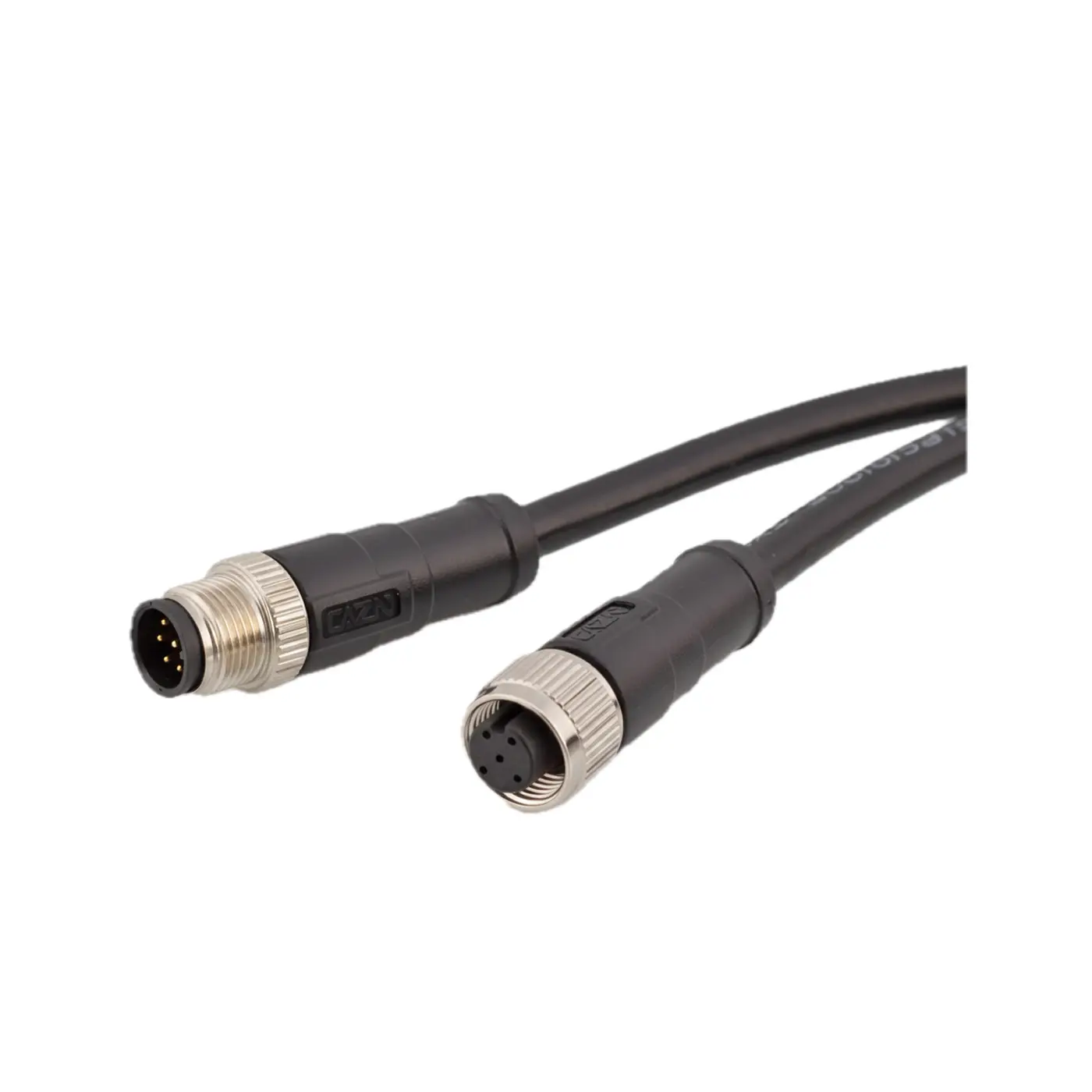
- 1× M12 cable
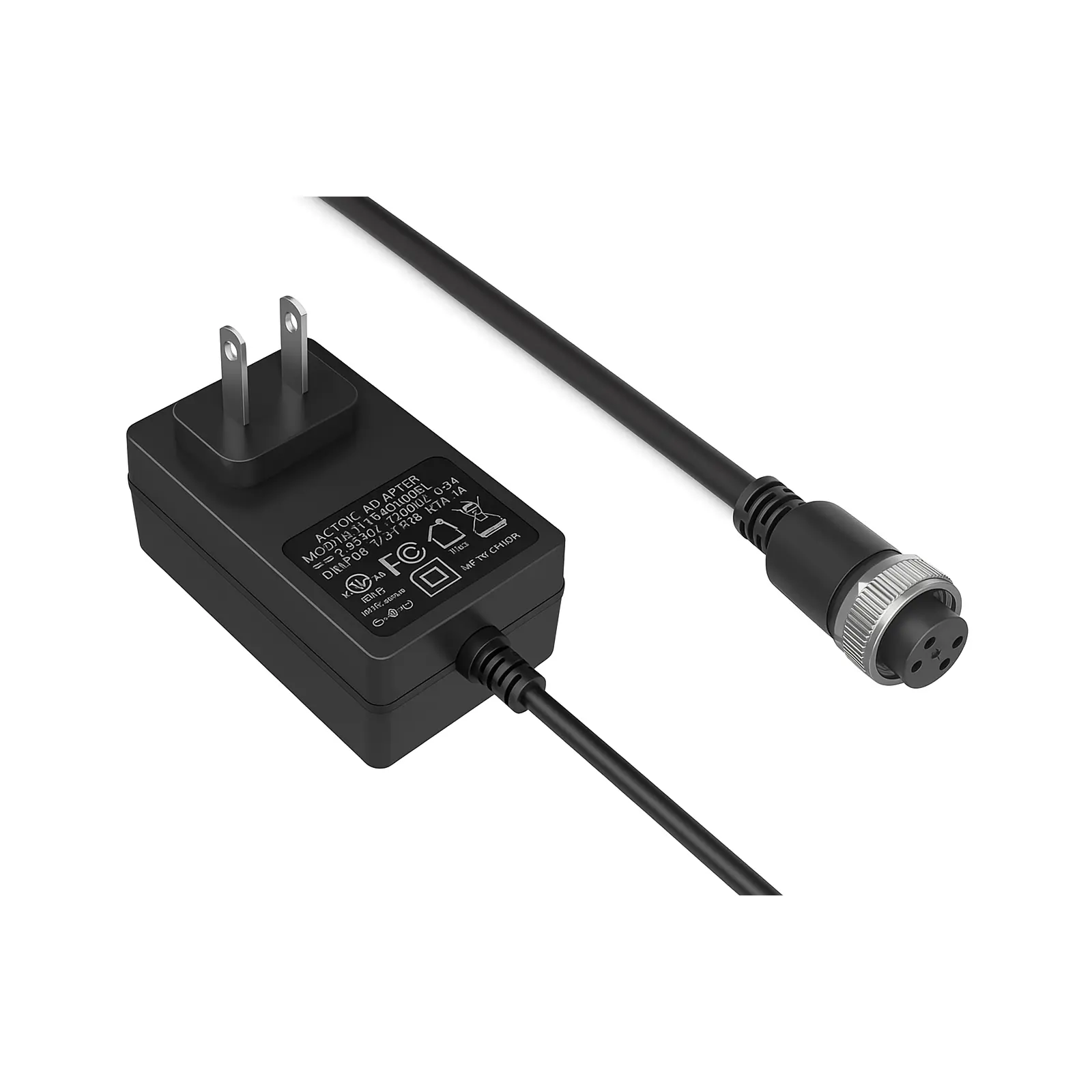
- 1× M12 Power adapter

Inspect for damage:
- Check enclosure for cracks or damage
- Verify antenna connector is intact
- Ensure M12 connectors are clean and undamaged
- Check power adapter is included
2. Physical Installation
Step 1: Connect the Antenna
Before mounting, attach the external antenna to the SenseAi Embedded device:
- Locate the antenna connector on the device
- Align and thread the antenna connector
- Hand-tighten until secure (do not over-tighten)
- Ensure connection is snug but not forced
Step 2: Choose a Mounting Location
Select a mounting spot that:
Detects vibration effectively:
- As close as possible to the spindle or primary vibration source
- Directly on the machine frame (not on guards or covers)
- On a stable, flat metal surface
Does not interfere with operation:
- Clear of moving parts and operator workspace
- Won't be hit by workpieces or tools
- Doesn't block access panels or maintenance points
Suitable for environment:
- Can withstand your environment (SenseAi Embedded is IP67 rated)
- Protected from direct impact or mechanical damage
- Has adequate clearance for antenna
Examples of good mounting locations:
- CNC machines: Near the spindle housing
- Press brakes: On the frame near the ram
- Laser cutters: On the machine frame near the cutting head
- Packaging machines: On the motor housing

Step 3: Attach the Sensor
SenseAi Embedded uses a strong magnetic base for secure mounting:
- Clean the mounting surface — Remove oil, coolant, or debris
- Position the device — Align the sensor on your chosen location
- Attach magnetically — The magnetic base will grip firmly to the metal surface
- Verify security — Gently try to move the device to ensure it's secure
- Position the antenna — Orient for best signal reception (vertical is typically best)
Verify the installation:
- Device is firmly attached and won't move during machine operation
- Antenna has clearance and won't contact moving parts
- M12 connectors are accessible for power connection
- Location allows vibration detection during machine operation
3. Powering Up Your Device
Connect Power
SenseAi Embedded uses industrial M12 connectors for reliable power delivery:
-
Connect M12 cable to device:
- Align the keyed connector
- Push firmly until it clicks
- Hand-tighten the locking collar
-
Connect to a power source or T-Splitter:
- M12 Power adapter: Plug the adapter into a standard AC outlet (100–240 V AC), or
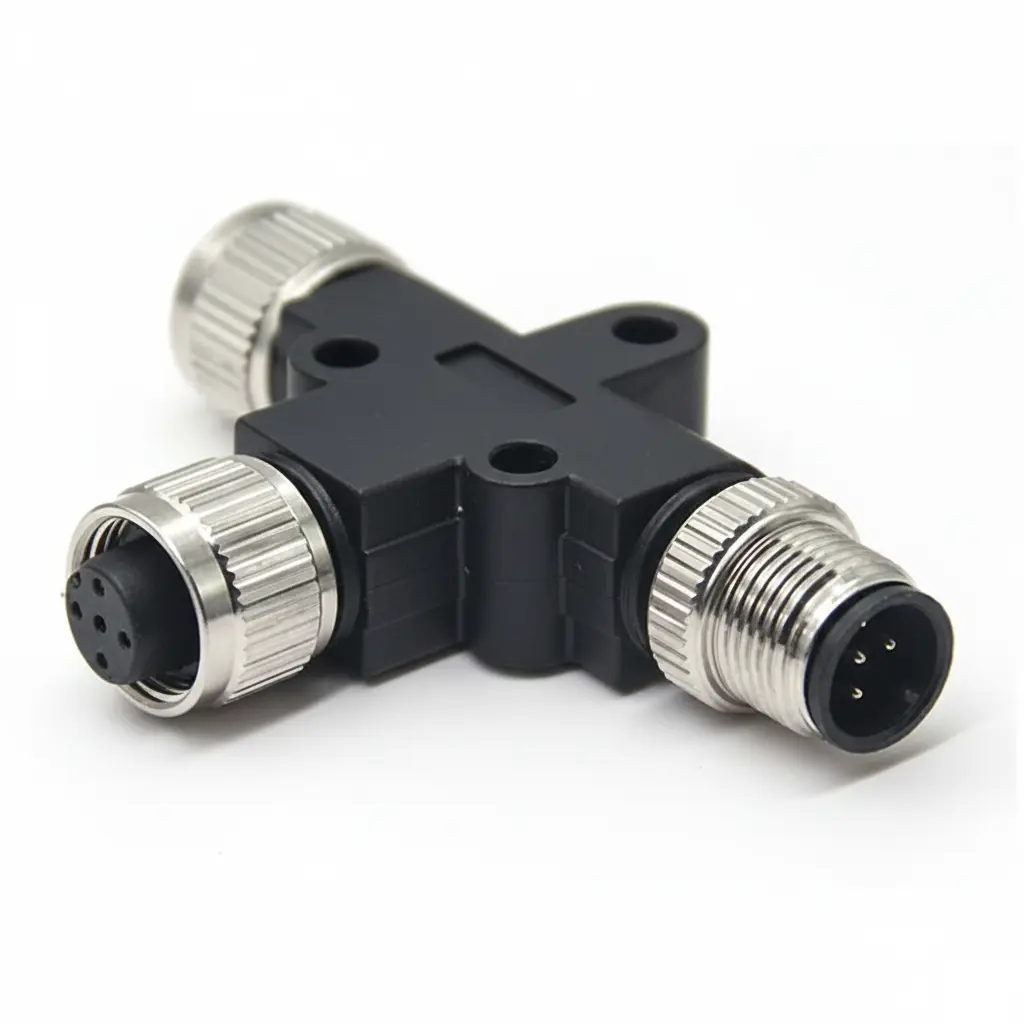
- M12 T-Splitter: Connect the other end of the M12 cable to a T-Splitter to enable shared, daisy-chained power
First Boot Sequence
After powering on, observe the LED behavior:
- Power LED will turn on (indicates device has power)
- Status LED will go through boot sequence
- One of two things will happen:
- If you ordered a 4G/LTE router: Device automatically connects within 2-5 minutes
- If connecting to WiFi: LED begins blinking blue (WiFi setup mode)
LED Status Reference:
| LED Status | Meaning | Action Required |
|---|---|---|
| Power LED on, Status LED off | Booting up | Wait 30-60 seconds |
| Blinking Blue | WiFi setup mode | Proceed to Network Setup |
| Flashing Red | Attempting WiFi connection | Wait for connection |
| Stable Cyan/Orange | Connected successfully | Device is online |
Troubleshooting Installation Issues
No LED Lights / Device Won't Power On
Symptoms:
- All LEDs are off
- No response when powered
- Device appears completely dead
Solutions:
-
Check M12 connections:
- Verify M12 cable is fully seated and locked on both ends
- Check for bent pins or debris in connectors
- Try disconnecting and reconnecting
-
Check power source:
- Verify outlet has power
- Try different outlet
- If using industrial power, verify voltage (12-24V DC)
- Test power adapter with multimeter if available
-
Check device:
- Look for physical damage to enclosure
- Verify antenna is connected
- Contact support if device still won't power on
Weak Magnetic Hold
Problem: Device doesn't attach securely or falls off
Solutions:
- Clean mounting surface — Remove all oil, coolant, paint, or debris
- Verify surface material — Must be ferrous metal (steel, iron)
- Check for paint/coating — Thick paint or coatings can weaken magnetic grip
- Try different location — Find thicker, flatter metal surface
- Contact support — For alternative mounting solutions
Antenna Issues
Problem: Antenna is loose, damaged, or won't connect
Solutions:
- Hand-tighten only — Do not use tools; hand-tight is sufficient
- Check threads — Ensure no cross-threading occurred
- Inspect connector — Look for damage to threads or connector
- Contact support — For replacement antenna if damaged
Installation Checklist
Before proceeding to network setup, verify:
- ✅ Device is securely mounted on machine
- ✅ Mounting location detects vibration during operation
- ✅ Antenna is connected and has clearance
- ✅ M12 power connections are secure and locked
- ✅ Device powers on (Power LED illuminated)
- ✅ Status LED shows activity (blinking blue or other status)
- ✅ Device doesn't interfere with machine operation or safety
Next Steps
✅ Installation complete!
Now proceed to network setup:
→ Continue to Network Setup to connect your device to the internet.
Need help?