

Configure tracking for bottling and packaging lines
Count finished units as they pass a point on the line, whatever the machines upstream are doing.
A filling, capping, packing or labeling line ends with units moving along a fixed path in one direction: bottles, cans, packets, tubes, cartons or cases. Counter is the algorithm for that case. It takes each break of a BeamTracker beam as one cycle, so the count is what left the line rather than what any single machine in it was doing. Allow 30 to 45 minutes for the first line.
Before you start
- A BeamTracker tied to the asset, installed and aimed. See Install and align BeamTracker, and contact IoTFlows to tie your sensors to an asset in Get support.
- Sign in as an Organization Owner or Organization Administrator, see Roles reference.
Why Counter fits a line
Three things about a line point at the same algorithm.
- The output is units passing a point. They travel a fixed path in one direction, which is exactly what a beam across that path measures.
- No single machine's cycle is the line's output. A filler, a capper and a case packer each run their own rhythm, and a sensor on any one of them counts that machine rather than the line.
- The count does not depend on a number you typed. Counter counts beam breaks, so an entered cycle time that drifts out of date changes the goal without changing the count.
Count from the machine's own cycle with a SenseAi instead when what you need is the state of one machine rather than the units leaving the line. SenseAi derives counts and cycle times from the machine's vibration trace, so it tells you which machine stopped. A BeamTracker at the discharge tells you the line stopped, not where.
You do not need both on the same equipment. Add a second device only when you want the line's output and one machine's health from the same place, and expect to calibrate each separately.
Choose the count point
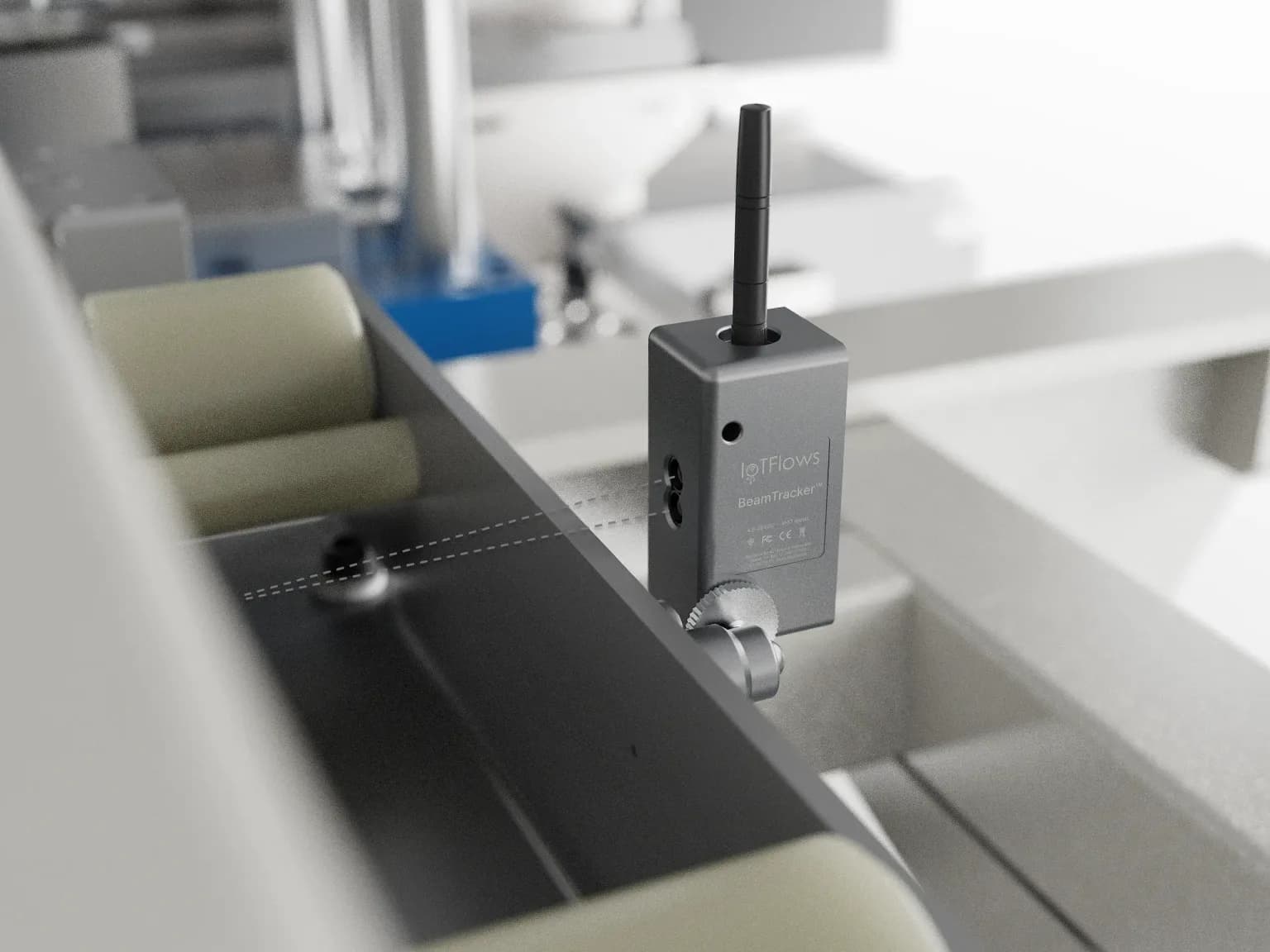 The beam crosses the part path at one point. Everything that breaks it is counted, so the count point decides what the number means.
Aim for a point where every good unit passes the beam and nothing else does. On a line that means one place in particular: after the last reject or divert station, so the number is what the line produced rather than what it attempted.
- Pick the narrowest point in the flow, where units run single file. A beam across a mass-flow conveyor two units wide counts neither reliably.
- Stay off accumulation tables and buffer loops. A unit that backs up, drifts forward and backs up again crosses the beam more than once.
- Keep hands, totes and operator reach out of the beam. A beam that catches a hand counts hands.
- Mount within 8 m (26 ft) of the part path, with a stable surface behind it and nothing moving in the background.
- Fasten the bracket to something that does not move when the line runs. A bracket that vibrates walks the beam off its target over a shift.
Clear and reflective units are the one case to plan around. Glass and clear film may not break the beam at all. Aim at an opaque feature instead, such as the closure, the label band or the filled body of the container, or move the count point downstream and count cases rather than bottles.
Wash-down is not a constraint. BeamTracker is IP67, so it is the air the beam crosses that limits placement: mist, steam and spray break a reading in a way the housing does not. Full mounting detail is on Choose a mounting point.
Set what the beam counts as a unit
Four values on the device's Calibration tab decide whether a reading is a unit. The procedure and the field reference are on Set what counts as a part. Three of them need a line-specific answer.
- Depth of View sets the far edge of the detection zone. Pull it in front of the far guard rail, so a tote crossing the aisle behind the line is background rather than product.
- Min Object Thickness is a floor, not a ceiling. Set it to the thinnest unit you must count, for example a tube rather than a case, because a floor above that drops small units silently.
- Reading Speed trades responsiveness for stability. A line at 120 units a minute presents a unit every 0.5 seconds, so choose a faster setting when the count runs low and a slower one when a dusty line counts high.
Set these by watching a real unit cross the thresholds rather than by typing numbers, in Run a live beam calibration.
Create the part and its operation
- Open Parts List at
/production?select=parts_list. - Click + Add Part.
- Enter a Part Name, for example
500 mL Spring Water. Part Description is optional. - Under Assign Operations, name the operation after the product and container, for example
FILL-500ML, and describe it, for example500 mL PET, 24-count case. - Enter Operation Cycle Time. For a line running 120 units a minute, that is 0 in the hour and minute boxes and
0.5seconds. - Add the machines that run this operation, then click Add Part.
- Back on the Parts List, expand the part, click the operation's Algorithm cell and choose Counter. It saves as you pick it.
- Click the OP UNIT cell and name what the line counts, for example
bottles. The label is free text, capped at 12 characters. - Set QTY/OP to what one beam break yields.
A Counter operation carries no standard deviation box, unlike the two discrete algorithms, and saves with the tolerance at zero.
QTY/OP is decided by what the beam sees, not by what the line makes. Point the beam at single bottles and one break is one bottle, so leave it at 1. Point it at cases leaving a packer and one break is a case, so a 24-count case is 24. Getting this wrong is the reason a line's count comes out as an exact multiple of reality. The field reference is on Unit and quantity per cycle.
Enter the line speed as a rate
A line is quoted in units a minute, and a Counter operation is the one place the Parts List takes that number directly. The cell carries a swap control beside the cycle-time boxes: click it, type 120, and the cycle time is written back from the rate. See Production rate is the same number.
The unit beside the rate is the OP UNIT label you set, so a line reading 120.0 bottles/min is a gauge an operator can check against the line's rating plate.
On a Counter operation this number never touches the count. It sets the Calculated Goal on Shift Production, the parts gauge and the hourly bars, and nothing else. That is the opposite of Continuous Analysis, where the cycle time divides running time to produce the count. A line whose counts are right and whose goal is wrong has a cycle time problem; a line whose counts are wrong has a beam problem.
Set the downtime filter on the device
The Downtime Filter for a BeamTracker is how long the line stays running after the last unit. Every unit resets the timer, and if none arrives inside the filter the line switches to stopped, back-dated to the last unit.
It is not the Parts List Downtime Filter column. That column belongs to Continuous Analysis, it is a percentage of the cycle time, and it does not appear on a Counter operation. A BeamTracker's filter is on the device's Calibration tab and is set in time, see Set the downtime filter.
Start from the line's real unit-to-unit time and add room for ordinary pauses. A line running continuously sits in the 15 to 45 second band. A line that fills a buffer, pauses while a case is packed and resumes needs a filter past the longest normal gap, or every pack cycle reads as a stop.
Turn on Blocked Sensor Stop Time if a jam leaves a unit sitting in the beam. Without it, a parked unit holds the reading inside the detection zone and the line keeps reading as running through the whole stoppage. The minimum is 25 seconds, see Stop the line when the beam stays blocked.
Assign the operation to the line
- Open Assets at
/assetsand click the line's asset. - Click Auto-Detect to open Select Auto-Detect Operations.
- Stay on the Count tab. A BeamTracker shows Count and nothing else, because the three analysis algorithms read a vibration trace.
- Select the operation's radio button. This list is single choice, not checkboxes.
 The Count tab of the Auto-Detect modal, the only tab a BeamTracker shows. It is single choice, so the line carries one operation at a time.

The dashboard saves as you pick, confirms with Count Auto-Classification Set and closes the modal. There is no submit button on this tab, only Close.
An operation with no algorithm never appears in this list, and neither does one set to an algorithm the device cannot run. A BeamTracker lists Counter operations only. If the operation you want is missing, create or correct it from Add/Edit Parts inside the same modal, see Detect operations automatically.
The Count tab has no "stop detecting" row. The Continuous tab carries No Continuous Detection; this one does not, so a line keeps its operation until you pick a different one.
Handle product and size changes
Because the Count tab is single choice, a line carries one operation at a time. A product change is two jobs: change the line over, then re-pick the operation. Skipping the second files the new product's units under the old product's part, which is the most common reason a line's numbers go wrong after a changeover.
A size change is more than a re-pick. A 330 mL can and a 2 L bottle are different objects to the beam, so re-check the beam values as well:
- Re-pick the operation on the Count tab.
- Confirm Min Object Thickness still sits below the new unit, in Set what counts as a part.
- Confirm the new line speed against the operation's rate, so the goal matches what the line can now do.
- Classify the changeover itself, so the time shows up as downtime rather than disappearing. Create a Changeover category in Create a category, and write a rule if changeovers always look the same, in Classify downtime automatically.
A label or flavor change needs none of this when the container is identical. Same object, same beam values, same operation.
Validate the count
- Let the line run normally for one to two hours.
- Count units at the discharge for a fixed window, or read the counter on the line's own control panel.
- Open Shift Production at
/production?select=partand read the count for the operation over the same window. - Compare the two. Within 5 to 10% is right.
- Open Downtimes at
/assets?select=downtimesand confirm real stops are recorded while normal gaps between units are not filling the list.
Counting against the line's own panel is worth doing once even where you trust it, because the two counters rarely sit at the same point in the flow. A panel counting filled bottles and a beam counting packed cases are both right and will never agree.
Accuracy bands and what to do at each one are on Choose a production tracking algorithm.
What a BeamTracker line does not report
A BeamTracker measures a beam, not a machine, so a line tracked this way reports counts, rates, running time and downtime, and nothing about the condition of the equipment.
| Available | Not available |
|---|---|
| Part counts and throughput | Vibration and machine health |
| Running and stopped time, and uptime | Temperature and shock readings |
| Downtime with duration and reason | The Health tab, which the dashboard hides on a BeamTracker asset |
| Machine Status and connectivity alerts | Health, vibration, shock and temperature alerts |
Add a SenseAi on a machine in the line if you need those, see What BeamTracker does not report.
Set the line's goal from its own baseline rather than from its rating plate, in Set OEE and utilization goals. Uptime is availability, the share of the window the line spent running, see Uptime. Log rejects against the job so the good count is the number you compare, see Log scrap.
Troubleshoot a line
| Symptom | Cause | Fix |
|---|---|---|
| Count is an exact multiple or fraction of real output | QTY/OP does not match what one beam break yields | Set it to 1 for single units, or the pack count where the beam sees cases, see Create the part and its operation |
| Count runs low on clear containers | Glass or clear film is passing without breaking the beam | Move the count point to an opaque feature or to cases, see Choose the count point |
| Count runs low on small units | Min Object Thickness sits above the unit, so it is dropped silently | Lower it to the thinnest unit you must count, see Set what counts as a part |
| Count runs high, and the line has a buffer | Units are backing up and re-crossing the beam | Move the count point off the accumulation table to a single-file section |
| Count runs high on a dusty or misty line | Reading Speed is averaging too lightly, so one noisy reading reads as a unit | Choose a slower reading speed |
| Counts are right and the goal is wrong | The rate on the operation no longer matches the line | Re-enter the line speed on the operation, see Enter the line speed as a rate |
| Downtime list fills with short stops through a normal shift | The device downtime filter is shorter than the line's real unit-to-unit gap | Raise Downtime Filter past the longest normal gap, see Set the downtime filter |
| A jam ran for an hour and the line reported it as running | A unit parked in the beam held the reading inside the detection zone | Turn on Blocked Sensor Stop Time, minimum 25 seconds, see Stop the line when the beam stays blocked |
| Numbers went wrong at a changeover and stayed wrong | The operation was not re-picked, so units count against the previous product | Re-pick on the Count tab, see Handle product and size changes |
| Counting stopped entirely | The device is offline, and a BeamTracker counts nothing while it is | See Troubleshoot a device that is offline |
Counts that stay wrong after the beam values and QTY/OP are both right are on Troubleshoot inaccurate part counts.
See also
Set up stroke counting on a press that fires 10 to 120 times a minute. Mount the SenseAi on the frame near the ram, measure the stroke rate, create the part with one operation per die, set the operation's algorithm to Discrete w/o Merge, then assign every die's operation at once from the Auto-Detect modal's Discrete tab, which is multi-select. Because nothing is merged, every gap between strokes reaches the downtime record until you set the machine's Downtime Threshold with Treat short downtimes as uptime switched on. Operation Cycle Time takes whole seconds, so a press faster than 60 strokes per minute cannot carry an exact cycle time and its shift goal is approximate.
Shift Production, at /production?select=part, lists every operation that has run this shift with its calculated goal, good count, pace and hourly bars, and expands each operation into one row per machine. The Progress gauge is green at or above the machine's OEE goal and red below it, with no orange. Goals here are read-only: the calculated goal comes from the operation's ideal cycle time in the Parts List, and the percentage that colors the gauge comes from the OEE goal. Six filters write themselves into the URL, which is what makes the board sendable to a TV.