


Downtime Tracking
Downtime tracking that catches every stop and the reason behind it
A sensor on the machine catches every stop in seconds. Operators tag the reason in a tap, rules tag the routine ones, and the Pareto shows which stop to fix first.

Trusted by industry leaders







































































The problem
Every plant loses time. Few know where it goes.
A stop makes the shift report if someone remembers it, and the reason comes back as “Other”. Ten-minute jams, long changeovers and waits for material each look small on the day, so nobody adds them up, and the biggest loss in the plant stays the one nobody has measured.
Machine downtime tracking
Every stop, caught at the machine
SenseAi and SenseAi Embedded read the machine's vibration, and BeamTracker counts the parts crossing its beam. The moment a machine stops, it shows on the Assets page, then turns orange after a minute and red after five, or at the times you set. Nobody has to write anything down.
Reasons
A reason in one tap
Operators pick from your own list of reasons, grouped by severity, at the machine, in Operator View on a shared tablet or in the iOS app. Mark the reasons that need a note and the ones you planned. Clear six stops at once, or split one that had two causes.
Automatic rules
The routine stops classify themselves
Short stops, the start and end of each shift, a machine idle for a whole shift and scheduled breaks each get their reason automatically. Operators only see the stops worth explaining.
Root cause analysis
Fix the stop that costs the most
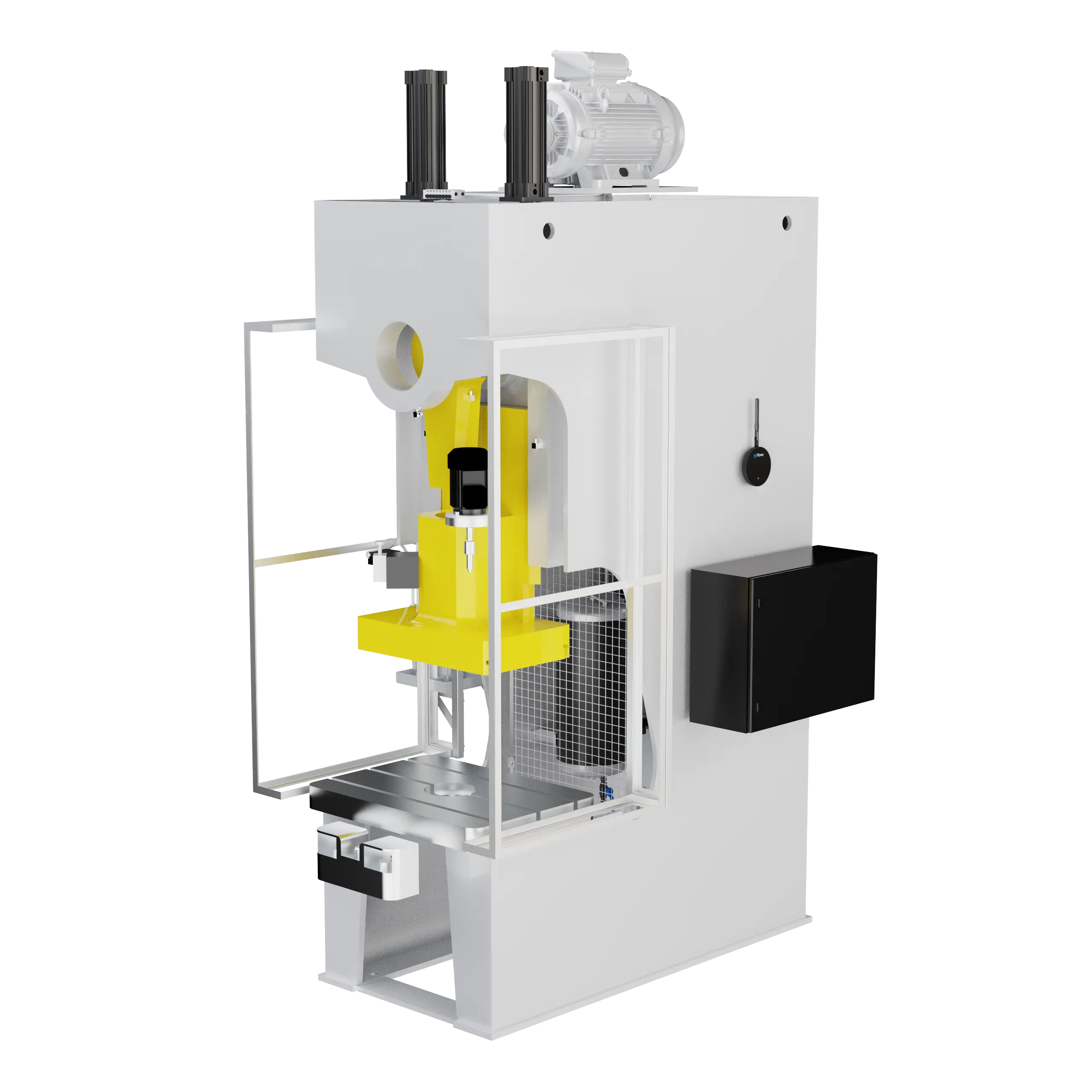
Downtime root cause analysis starts with the Downtimes report. It ranks every reason by the hours it cost, then splits them by week and by machine, so you can see whether a fix worked. Share it, export it, or have it email itself every Monday.
Datwyler cut its shift-changeover downtime in half by acting on it.
Maintenance
From a stop to a work order
When a stop needs a repair, the operator opens the work order from the same dialog, with the reason, the note and the machine already filled in. Maintenance sees it in Maintain right away.

Alerts
Know when a stop runs long
Give each machine a Machine Down warning, say at ten minutes, and a critical alert at thirty. The right people hear about it by email, push, SMS, Slack, Microsoft Teams or Discord, before the stop eats the shift.
Customer story
Datwyler cut shift-changeover downtime in half
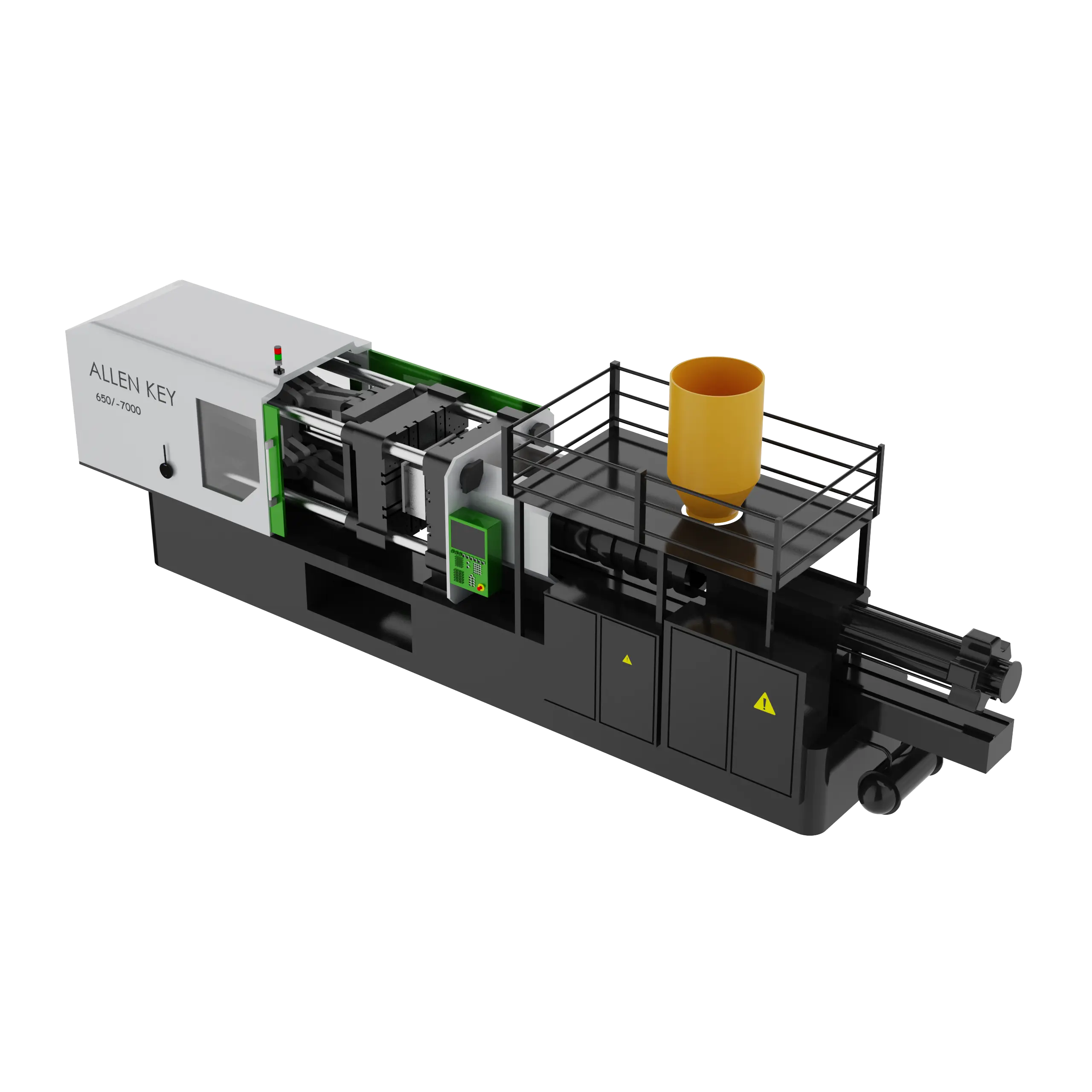
Datwyler molds precision components on more than 20 injection molding machines in California. Every stop now carries a reason, and the weekly and monthly reports show which ones to fix next.
- 50%
- less shift-changeover downtime
- 30%
- less material-changeover downtime
- 20%
- higher efficiency across 20+ machines
Challenge
Supervisors could see that machines were down, but not why. With no reasons on the stops, every fix was a guess, and nobody could tell whether it had worked.
Solution
SenseAi on every molding machine, with short stops and the start and end of each shift classified automatically. Operators and supervisors put a reason on the rest, and the team reviews the Downtimes report week over week and month over month.
Products
SenseAi and the Downtimes report.


“By tracking downtime categorization week to week and month to month, we could see exactly where our biggest problems were and track whether our fixes actually worked. The 50% reduction in shift changeover time came directly from acting on patterns we saw in the historical reports.”
Criollos Foods cut downtime 45% on its bagging lines and setup time by 20 minutes. Read the Criollos Foods story.
Questions people ask
Machine downtime tracking from the sensor with no operator input: SenseAi reads vibration and sound, SenseAi Embedded reads vibration and temperature at the motor, and BeamTracker reads the gap between parts crossing its beam. Status colors that turn a stopped machine orange and then red after two durations you set. Reason codes under None, Low, Medium and High severity headings, with required notes, planned-downtime flags, category types and colors. Classification from the status bar, the machine page, Operator View or the iOS app, one stop or many at once, and a split for a stop with two causes. Four automatic rules (short stops, shift start, shift end and whole-shift stops) plus scheduled break windows. The Downtimes report: a Pareto of reasons, trends by interval and by machine, and a table of every stop, filtered by department, machine, shift, category, severity and notes, exported to CSV or PDF or emailed on a schedule. A maintenance work order from a classified stop, and Machine Down alerts at a warning and a critical time by email, push, SMS, Slack, Microsoft Teams or Discord. SenseAi and SenseAi Embedded attaches magnetically in seconds and calibrates in under five minutes; BeamTracker bolts on with the supplied mount in 10 to 20 minutes.
The sensor decides on the device, second by second. SenseAi reads vibration and sound, SenseAi Embedded reads vibration and temperature at the motor, and BeamTracker reads the gap between parts crossing its beam; a gap longer than the downtime filter you set reads as a stop. No PLC, no operator input, no wiring into the controls. Time when a sensor sent nothing is reported as unknown, on its own, so it never counts as downtime.
Operators, from the status bar, the machine page’s activity list, Operator View’s All Downtime tab, or the iOS app. They pick a reason from categories you define under severity headings, with a note where you require one. One stop or many at once.
Yes. Four organization-wide rules put a reason on the stops nobody should have to classify by hand: short downtimes, the start of a shift, the end of a shift, and a machine down for an entire shift. Scheduled break windows add a reason for lunch and breaks. Turn on short downtimes first, and leave the whole-shift rule off until your shift schedule matches the floor.
A downtime category: a reason created under a severity heading, optionally requiring a note, optionally marked as planned downtime, tagged with a type and given a color that carries through to the Downtimes report. Keep the list to about eight reasons, so operators pick from it without scrolling.
Planned downtime is a stop you scheduled: a changeover, a preventive maintenance window, a break. In IoTFlows it is a setting on the reason, so every stop classified under Tool Change is planned and every stop under Machine Failure is not. Planned reasons carry a calendar icon in the picker, which filters to planned or unplanned reasons in one click.
The Downtimes report ranks every reason by the hours it cost, so the biggest cause is the first bar. Split the same downtime by week to see whether a fix worked, and by machine to see whether a cause is spread across the floor or sits on one machine. Filter to stops with notes to read what operators saw, and split a stop that had two causes so each gets its own reason.
Yes. From the activity list you can split a stop that holds two reasons, change an activity’s operation, remove a classification, or delete a false activity.
Yes. The Classify Downtime dialog carries a Create Maintenance Workorder button, so a stop caused by a fault becomes a work order in Maintain with the reason as its title, the note as its description and the machine already set. An event rule or a meter can open one too.
Yes. Open Event Notifications on the machine, set the Machine Down warning time in minutes above your normal changeover, add a longer critical time if you want a second alert, and add the people who should hear about it to each event’s subscriber list. Alerts go to email, push, SMS, Slack, Microsoft Teams or Discord, and a hosted webhook can send the same event to your own system.
Documentation
Want the detail? These guides walk through each feature step by step.
- Analyze downtime with Pareto and trend chartsThe Downtimes report, its filters and exports.
- Manage downtime categoriesReason codes under severity headings, notes, planned flags and colors.
- Classify downtime automaticallyThe four rules and the break windows, and which to turn on first.
- Classify a downtime eventFrom the status bar, the activity list, Operator View or a phone.
- Set status colors and downtime thresholdsThe two durations behind orange and red.
- Quickstart: get an email when a machine goes downOne alert end to end, with the threshold and the subscriber list.
- How each metric is calculatedUptime, downtime, unknown time and utilization, defined.
- Use Operator View on the shop floorA station per machine, with the All Downtime tab.
See where your downtime goes
Start with 10 to 25 machines for four weeks. Stops show up the first day, and by the end you know which reasons cost the most.